

LLM Cache Analyzer
Cache Analyzer is a built-in web tool for analyzing LLM request cache hit rates, token consumption, and context changes. It provides visual insights to help optimize prompt design and improve cache efficiency.
Features
Section titled “Features”- Cache Hit Rate Statistics: Overall hit rate, average hit rate, and detailed token consumption breakdown
- Request Comparison: Automatic diff analysis between consecutive requests (added/removed/modified)
- Message-Level Diff: Precise display of changes in each message
- System Prompt Diff: Track changes to system prompts
- Streaming Response Parsing: Supports parsing SSE streaming responses (accumulates chunks and extracts cache stats)
- Markdown Export: One-click export of analysis reports for sharing and archiving
Starting the Tool
Section titled “Starting the Tool”cache-analyzer -p 1000After starting, visit http://localhost:1000 to access the configuration page.
Usage Workflow
Section titled “Usage Workflow”1. Add Log Files
Section titled “1. Add Log Files”Add one or more log file paths in the configuration page. The tool automatically scans for llm.http.request and llm.http.response events.
2. Enter Session ID
Section titled “2. Enter Session ID”Enter the Session ID you want to analyze. The tool will extract all LLM requests for that session.
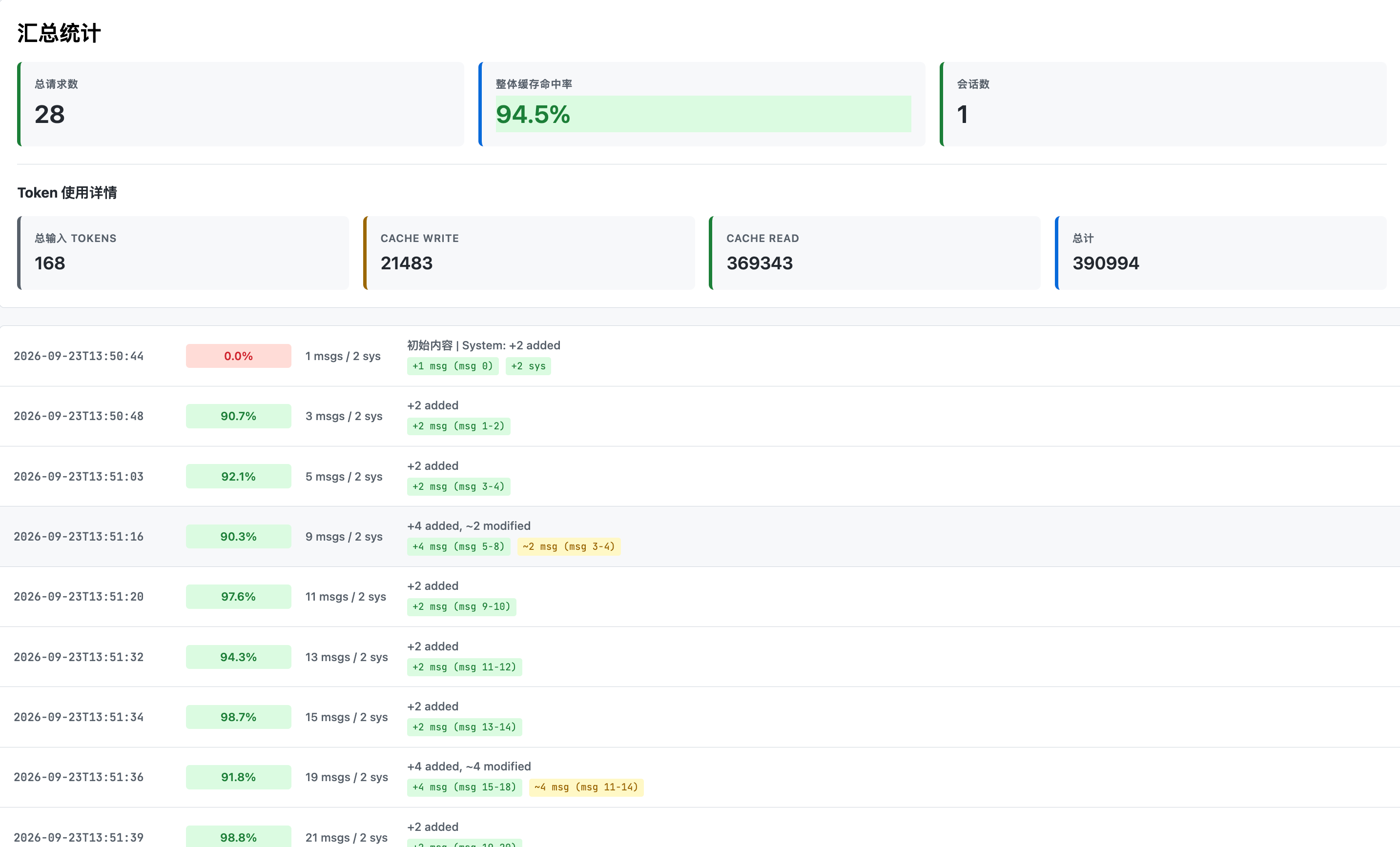
3. View Analysis Report
Section titled “3. View Analysis Report”The report page displays:
- Overall cache hit rate statistics
- Detailed diffs for each request (message and system changes)
- Hit rate trends
4. Export Report
Section titled “4. Export Report”Click the export button to generate a Markdown-formatted analysis report with complete diffs and statistics.
Analysis Dimensions
Section titled “Analysis Dimensions”Cache Hit Rate
Section titled “Cache Hit Rate”| Metric | Description |
|---|---|
| Overall Hit Rate | Overall hit rate calculated from tokens |
| Avg Hit Rate | Average hit rate across all requests |
| Cache Read Tokens | Number of tokens read from cache |
| Cache Write Tokens | Number of tokens written to cache |
| Total Input Tokens | Total input token count |
Request Change Statistics
Section titled “Request Change Statistics”Each request comparison includes:
- Added: Number of new messages
- Removed: Number of deleted messages
- Modified: Number of modified messages
- System Changes: Changes to system prompts (added/removed/modified)
Optimization Tips
Section titled “Optimization Tips”Optimize your prompts based on analysis results:
- Front-load Stable Content: Place unchanging content (role definitions, rules, etc.) at the beginning of messages to improve cache hits
- Back-load Dynamic Content: Place changing content (user input, context) at the end of messages
- Avoid Random IDs: Use deterministic identifiers instead of random UUIDs
- Maintain Message Order: Keep message order stable; avoid inserting/deleting messages in the middle
Log Format Requirements
Section titled “Log Format Requirements”Log events parsed by the tool:
| Event | Description |
|---|---|
llm.http.request | LLM request with complete request body |
llm.http.response | LLM response with token usage statistics |
llm.http.response (streaming) | SSE streaming response — chunks are accumulated and cache stats extracted |
Key fields:
session_id: Session identifierinput_tokens,cached_read_tokens,cached_write_tokens: Token statisticsmessages: Message listsystem: System prompts
Enabling LLM Payload Logs
Section titled “Enabling LLM Payload Logs”The llm-payload.log file contains complete LLM API request/response data and must be enabled in the configuration:
Configuration file (etc/config.yaml or etc/config.local.yaml):
log: llm_payload: trueEnvironment variable:
export LOG__LLM_PAYLOAD=trueStartup information:
- Log file location:
logs/llm-payload.log - Format: JSON Lines (one JSON object per line)
- Environment: Development/debugging only, do not enable in production
- Performance impact: Increases disk I/O, records complete request and response data
When enabled, the server will display at startup:
LLM payload logging enabled — writing to logs/llm-payload.logTroubleshooting
Section titled “Troubleshooting”Session Not Found
Section titled “Session Not Found”- Verify log file paths are correct and readable
- Check Session ID spelling
- Confirm logs contain
llm.http.requestevents for that session
Hit Rate is 0
Section titled “Hit Rate is 0”- Check if Prompt Caching is enabled (requires cache-supporting models)
- Verify
cached_read_tokensfield has values - Investigate if prompts change too frequently, causing cache invalidation
Abnormal Diff Display
Section titled “Abnormal Diff Display”- Ensure log format is complete (includes request body)
- Check if message content contains special characters
- Try re-parsing the log files